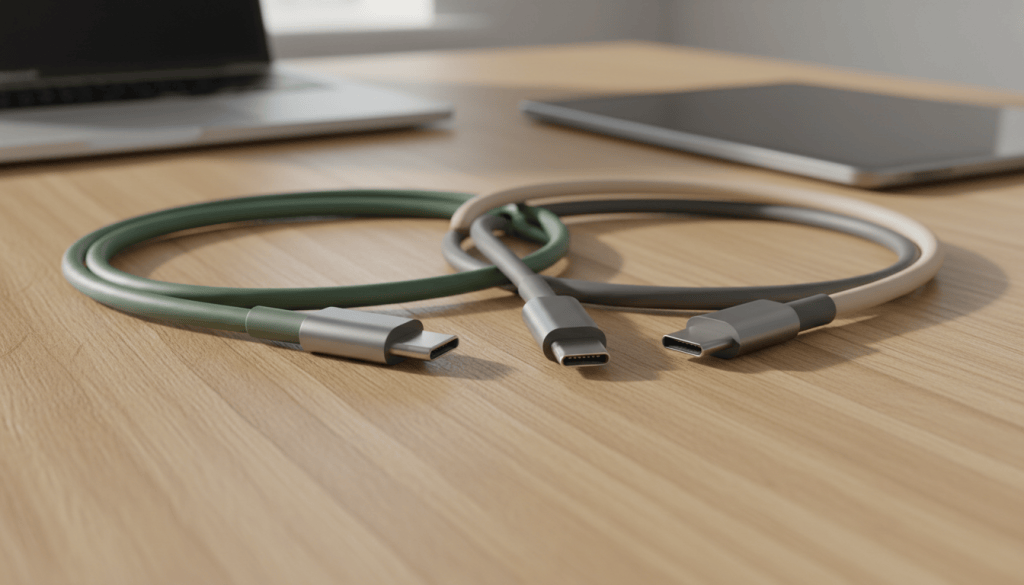
USB-C connectors look alike, but cables differ. Learn how to choose the right cable for charging, file transfers, monitors, and travel.
USB-C describes the connector, not every capability
Two cables can have identical oval USB-C plugs and still behave differently. One may be suitable mainly for charging and basic data, while another supports faster transfers or display connections. The device, charger and cable must all support a feature for it to work. A cable cannot make an unsupported laptop port output video.
Charging: check watts and the full chain
For USB Power Delivery charging, compare the laptop or phone’s requirements with the charger’s output and the cable’s rated power. High-power USB-C cables may require electronic identification to support their advertised limits. A charger marked 100 W does not force 100 W into every device; compatible devices negotiate power. Avoid unbranded cables with vague or implausible specifications, especially for high-power laptops.
Data: connector shape does not tell you speed
A cable that charges a phone may transfer files slowly. Look for a clearly stated supported data rate rather than assuming all USB-C cables are equivalent. USB 2.0-only cables can be adequate for charging and occasional small transfers; moving large video files benefits from a cable and ports that support faster standards. The slowest component in the connection limits the result.
Monitors and docks need special attention
Video over USB-C depends on the host port, cable, display or dock, and supported mode or protocol. Some setups use DisplayPort Alternate Mode; others use USB4 or Thunderbolt-compatible connections. Check the laptop and monitor documentation before buying. If a monitor stays black, test the same setup with a known video-capable cable and verify that the host USB-C port actually supports display output.
How to shop without overspending
Write down your use case first: phone charging, laptop charging, file transfers or external monitor. Then buy a cable with explicitly stated capabilities that meet those requirements. Consider the length, strain relief, reputable seller and return policy. Longer cables can have more limitations at high data rates, so do not assume a long cable performs like a short one.
Make existing cables easier to manage
Label cables by purpose, such as ‘laptop power’, ‘monitor’ or ‘fast data’, after verifying what each one does. Avoid sharply bending them at the connector. Keep a compact charging cable in a travel pouch rather than carrying multiple unidentified spares.
Related reading
For a tidier workstation, read our small-desk cable-management guide. If you travel with electronics, our power-bank buying guide covers capacity and safety considerations.
Editorial note: This is an independent informational guide. No products were tested or sponsored for this article, and no affiliate links are included.


Leave a Reply