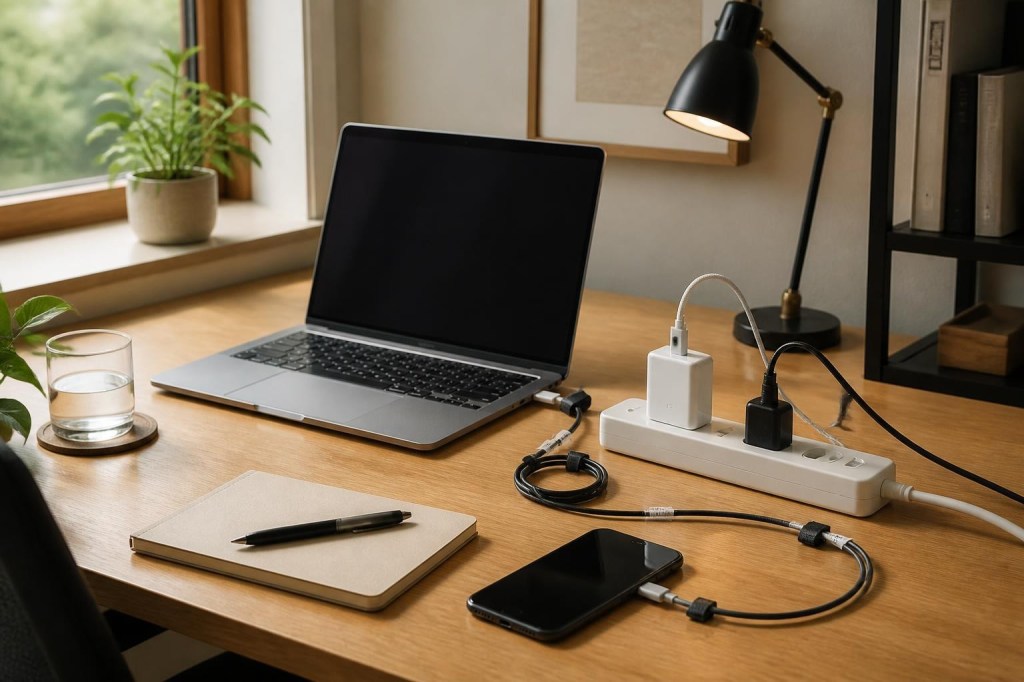

Organize chargers and cords in a small workspace without buying a full desk makeover—and avoid common electrical safety mistakes. The goal is to make a practical choice using what you have, rather than buying more products by default.
Make a cable map before buying anything
Unplug equipment when appropriate and identify every cable on your desk: laptop power, monitor, phone charger, headphones and accessories. Note which devices move daily and which stay put. Separate data cables from power leads, especially when planning where to tuck excess length. Remove cables you no longer use rather than hiding them in a bigger bundle.
Put the frequently used connections within reach
A charging lead you use several times a day should be easy to reach, not buried under the desk. Try a removable adhesive cable clip on a suitable clean surface or a simple hook-and-loop tie along the back edge. Leave a gentle loop of slack so moving your laptop does not strain its connector. A cable clip is often a more useful purchase than a complicated tray.
Secure loose lengths without damaging them
Use reusable hook-and-loop straps to group compatible cords loosely. Avoid sharp bends, crushing cables against a desk leg or pulling ties so tight that insulation deforms. Label both ends of look-alike charging and data cables. If a cable becomes hot, frayed, discolored or loose at the connector, stop using it and replace it with an appropriate product.
Give power strips a safe home
Keep power strips in an accessible, dry, ventilated location where they are not covered by fabric, paper or other clutter. Follow their ratings and manufacturer instructions. Do not daisy-chain power strips or extension cords; never run cords under rugs or through doorways where they can be pinched. High-power appliances are generally better plugged directly into a suitable wall outlet, following their instructions and local electrical guidance.
Reduce the number of chargers cautiously
A compatible multiport charger may reduce clutter, but verify supported charging standards, total wattage and per-port output. A laptop that needs substantial USB-C power may charge slowly or not at all from an undersized adapter. Prefer reputable, properly certified devices and cables suitable for the current and power they carry. Fewer plugs is useful only if the setup remains safe.
A ten-minute reset
Remove unused leads, wipe the surface, route fixed cables behind the desk, place one everyday charger within reach, and leave a spare accessible socket if needed. Repeat the check whenever you add a device. For broader improvements that do not require replacing furniture, see our budget desk setup guide.
Bottom line
Start small, check the relevant care and safety instructions, and only purchase something when it solves a recurring problem. A workable routine is more useful than a perfect-looking collection of accessories.


Leave a Reply